Do You Still Need to Safely Eject USB Drives? The 20-Year Rule Windows Quietly Retired
It is one of the most widely obeyed rituals in personal computing. You finish copying files to a thumb drive, glance at the bottom-right corner of the screen, click the little USB icon, wait for the satisfying notification — “Safe to Remove Hardware” — and only then pull the drive out. Forget the step, and somewhere deep in your brain a small alarm goes off: you have committed the digital equivalent of not looking both ways before crossing the street. Your files are doomed. The drive is ruined.
The claim behind the ritual is simple and stern: you must always safely eject a USB drive before unplugging it, or you risk corrupting your data. Tech-savvy friends have repeated it. IT departments have emailed it. Early versions of Windows practically trained us in it. And like most long-lived tech wisdom, it did not come from nowhere — it was once absolutely true. The question is whether it still is.
Over the past decade, the answer has quietly changed. Microsoft flipped a default that governs how Windows treats every USB stick you plug in, and the blanket rule that guided two decades of computing habits collapsed into something smaller and more conditional. But the story does not end with “feel free to yank.” It ends with a nuanced picture: a once-necessary habit that is now optional on most Windows PCs — yet still genuinely important on Macs, on Linux machines, on performance-tuned drives, and whenever data is actually moving.
Where the warning came from
To understand why the warning existed, you have to understand what happens between your copy command and the flash drive’s memory chips. In the early days of USB flash drives — the mid-2000s, when a 128-megabyte stick felt luxurious — Windows did not write your data to the drive immediately. Instead, it used a technique called write caching. To make file transfers feel fast, the operating system would accept your files into fast system memory (RAM) and report the copy as complete while the actual write to the slow USB stick continued in the background. The progress bar closed, the dialog box vanished, and you felt done — but Windows was not.
That gap is the whole story. Clicking “Safely Remove Hardware” (or “Eject”) was not superstition: it sent the operating system a clear signal — flush every cached write, close every open file handle, unmount the filesystem cleanly, and tell me when it is safe. Skipping that step meant yanking a drive while unwritten data was still sitting in RAM, and the consequences were real and well-documented: half-written files, corrupted file tables, entire drives that would no longer mount. Anyone who remembers the mid-2000s remembers someone — usually a student with a term paper — losing a drive this way. The habit formed in an era when the operating system genuinely needed the heads-up, because otherwise it had no way of knowing you were about to pull the plug.
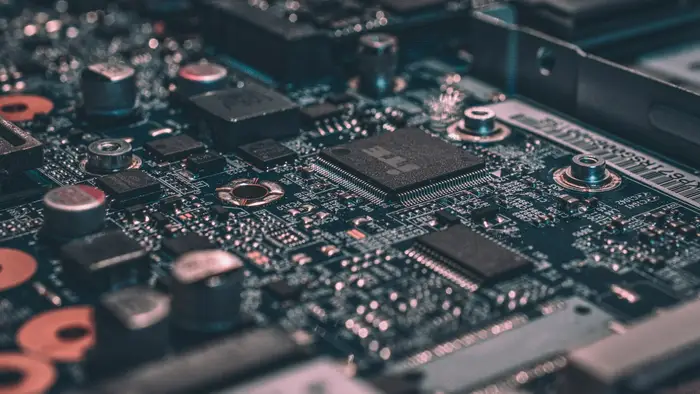
A close-up of the circuitry inside your computer — the same hardware that once cached USB writes in memory before Microsoft changed the rules.
What “safely remove hardware” actually does
Behind that little tray icon is a surprisingly choreographed sequence. When you ask the operating system to eject or safely remove a drive, it performs several steps in order. First it flushes the write cache, forcing every pending write from RAM onto the physical drive. Then it checks for open file handles — applications that still have files open on the device — and refuses to complete (or at least warns you) if something is still reading or writing. Next it unmounts the filesystem, finalizing its “table of contents” so the drive is left in a consistent state. On many systems it also cuts power to the port, spinning down external hard drives and ending their mechanical activity.
Every one of those steps exists to eliminate a specific class of failure. The cache flush eliminates lost or half-written data. The handle check eliminates the “I forgot Word was still open” disaster. The clean unmount eliminates the corrupted filesystem that can make an entire drive unreadable. This is why IT departments and data-recovery guides still teach the ritual: it is the operating system’s last chance to double-check that it is truly done before the hardware disappears from underneath it.
The big change: Windows 10 version 1809
Here is where the blanket claim starts to come apart. Starting with Windows 10 version 1809 — released in the autumn of 2018 — Microsoft changed the default removal policy for USB and external drives. Before that release, the default was a policy called “Better Performance,” which enabled write caching: faster-feeling transfers, but a hard requirement to use Safely Remove Hardware. After the release, the default became “Quick Removal,” which disables write caching for the drive. Under Quick Removal, Windows writes data directly to the USB device, so the drive is — in Microsoft’s own words — “ready to remove at any time” as long as no file operation is actively in progress.
Microsoft laid out the two policies in a support post, describing them this way:
“Quick removal. This policy manages storage operations in a manner that keeps the device ready to remove at any time. You can remove the device without using the Safely Remove Hardware process. However, to do this, Windows cannot cache disk write operations. This may degrade system performance.” (Microsoft support guidance, as quoted by HEXUS in 2019)
The companion policy, “Better Performance,” “manages storage operations in a manner that improves system performance” by caching writes — but “you must use the Safely Remove Hardware process to remove the external drive,” because the eject step “protects the integrity of data on the device by making sure that all cached operations finish.”
The company confirmed the shift publicly in 2019, when reporting on Microsoft’s support guidance noted that Windows 10’s “quick removal” mode had been the default for each new drive since version 1809. The reporting also noted that Microsoft had been quietly protecting drives against this class of failure since Windows 7. In other words: the rule that defined a generation of computing behavior was retired not by a single dramatic announcement, but by a settings default most users never knew existed — and Microsoft made the change, in part, because real-world user behavior had already decided the outcome. People were going to pull USB sticks without asking permission, so Windows adapted around that fact.
That default has persisted through Windows 10 and continues in Windows 11. If you have never touched Device Manager’s disk policies on your PC, every USB flash drive you plug in is almost certainly running under Quick Removal.
When ejecting still genuinely matters
The claim “you don’t need to eject anymore” is as much of an overcorrection as the original blanket rule. Here is where the ritual remains real, and why experts still recommend it.
On macOS and Linux, the old rules still apply. Unlike Windows, macOS and Linux still use write caching on USB flash drives by default. On those operating systems there is no official toggle to switch to a quick-removal-style policy, so safe ejection remains the expected workflow. macOS even scolds users with an on-screen warning when a disk was not ejected properly. If your household mixes operating systems, the “eject always” habit is still the correct one on every non-Windows machine.
If the drive is set to “Better Performance,” the old danger returns in full. Users (or applications, or IT policies) can still enable write caching per drive in Device Manager or in Windows 11’s disk settings, trading removal convenience for transfer speed. With caching enabled, skipping Safely Remove Hardware recreates the exact failure mode of the 2000s: cached writes that never reach the drive, corrupted files, unreadable volumes. The option exists precisely because, for some workloads, the performance is worth the discipline.
Encrypted drives deserve special caution. IT administrators consistently treat formal ejection as mandatory for encrypted USB volumes, because an interrupted write to an encrypted container can damage the encryption header — the metadata the entire volume depends on — and render the whole device unreadable. The margin for error is smaller than on a plain flash drive.
Active transfers are never safe to interrupt. Quick Removal eliminates hidden caching risk, not visible interruption risk. If a file is still copying, if a backup tool is still syncing, if a game launcher is still updating files on the drive, pulling the plug is just as destructive as it ever was. Experts describe the eject step as a useful status check rather than a mandatory superstition: it is the one moment the operating system tells you whether anything — a document you left open, a background sync, a media player — still holds the drive.
Heavy workloads raise the stakes. External SSDs and hard drives used for video editing, game libraries, virtual machines, or backups are exactly the setups where a torn write costs more than a minor annoyance. Organizations that support researchers and IT-heavy workflows still instruct users to eject, because it is impossible to tell at a glance whether background processes are touching the drive — even when you believe you are done. Microsoft’s own guidance remains blunt on this point: use Safely Remove Hardware to avoid losing data on USB flash drives and external disks.
Glowing circuit traces — a visual metaphor for the data path between your computer’s memory and the USB drive, where the “copy finished” message can outpace the actual writing.
How to check which policy your drive is using
If you are curious whether your own drives are under Quick Removal or Better Performance, Windows lets you look — and the setting is per drive, so a flash drive and an external SSD can be set differently. On Windows 11, plug the drive in, open Settings, go to System, then Storage, then Advanced storage settings, then Disks and volumes. Select the drive, click Properties, and the removal policy is listed there; the change takes effect immediately with no restart. On Windows 10, the older route runs through Device Manager: open it, expand Disk drives, right-click your USB drive, choose Properties, and open the Policies tab, where you can switch between Quick Removal and Better Performance.
This is worth doing at least once for any drive that holds something important, because an inherited or workplace-imaged machine may not match the defaults you assume. If you find a drive set to Better Performance — perhaps to speed up large video transfers or game library updates — treat Safely Remove Hardware as mandatory for that drive, every time. And note that external hard drives with their own power supplies behave the same way policy-wise; the spindle inside does not change the caching rules.
The mixed messages, explained
If you have heard contradictory advice, it is because the sources genuinely disagree — or rather, because each is answering a slightly different question. Microsoft’s support documentation says Quick Removal drives can be unplugged anytime; Microsoft’s guidance also still tells users to safely remove hardware to protect data. Tech outlets report that the fear “has been a myth for years”; the same outlets concede that ejecting is a valuable confirmation step. Neither side is wrong. The confusion comes from collapsing two questions — “is it technically necessary?” and “is it still good practice?” — into one slogan.
The practical reality most experts now converge on is a smaller, smarter rule. On a default Windows 10 or 11 machine, with an ordinary idle flash drive and nothing actively writing, unplugging without ejecting is generally fine — the system was designed for exactly that. But ejecting remains a cheap, fast confirmation that nothing you forgot about is still touching the drive, and it is still required on macOS, on Linux, on drives switched to Better Performance, and on any drive whose contents you cannot afford to lose. The old fear was too broad, but it was never foolish: it was a rational response to how Windows used to work.
Why the ritual refuses to die
There is a human layer to this story that explains why the “safely remove” habit survives years after the default changed. First, the muscle memory is strong: an entire generation learned the ritual before 2018 and never encountered the policy change. Second, the ritual is correct in the highest-stakes edge cases, and people generalize from their most frightening experience, not their average one. Third, cross-platform life keeps the rule alive: anyone who moves between a Windows PC and a Mac cannot rely on a single answer, so the stricter rule wins. And finally, the cost of ejecting is trivial — one click, two seconds — while the cost of the rare failure can be real. When the insurance is that cheap, even a small residual risk justifies keeping it.
That calculus is also why the strictest guidance comes from the places where data matters most. Data-recovery firms, university IT departments, and backup administrators all still teach eject-first workflows. They are not stuck in 2005; they are pricing in the edge cases — the forgotten open document, the performance-tuned external SSD, the encrypted volume, the background indexer — that turn a routine unplug into an incident.

Lines of code glowing on a dark screen — a reminder that “the copy is finished” is the operating system’s claim, and the eject step is how you make it prove it.
The Verdict
Verdict: Misleading.
The claim that you must always safely eject USB drives before unplugging them, or you will corrupt your data, is no longer accurate as a blanket statement — but it is not baseless either, which is why “False” would be the wrong call.
The evidence for “Misleading”: since Windows 10 version 1809, Microsoft’s default “Quick Removal” policy disables write caching on USB and external drives, meaning an ordinary idle flash drive on a default Windows PC can be unplugged without the Safely Remove Hardware step. Microsoft confirmed this default in its 2019 support guidance, and the behavior carries through Windows 11 today.
The evidence for the remaining kernel of truth: the rule still applies whenever write caching is enabled — on macOS and Linux, which still cache USB writes by default; on Windows drives switched to “Better Performance”; and on any machine with a background process you cannot see. Encrypted drives, heavy external-SSD workloads, and active transfers all remain genuine reasons to eject. Even Microsoft’s own guidance continues to recommend safely removing hardware to protect data, and institutions with data on the line still enforce the ritual.
So the blanket version of the claim misleads by pretending every unplug is equally dangerous, and the blanket dismissal misleads by pretending no unplug ever is. The precise statement is this: on default Windows, ejecting an idle USB drive is a two-second confirmation rather than a technical necessity; everywhere else — Mac, Linux, performance-tuned drives, encrypted volumes, or mid-transfer — it is still doing the real job it was designed for.
The bottom line
If the tray icon in the corner of your screen feels like a small ceremony you perform out of respect, you are not wrong to keep performing it. Treat the eject command not as a mandatory superstition, but as what it has become: a quick status check, a final confirmation that nothing — no forgotten document, no background sync, no hidden cache — stands between you and the truth of your data. The 20-year rule did not die; it grew up. It just needed a smaller, smarter version of itself.

Hands at a laptop keyboard — whichever operating system is running, the eject step remains the moment the system proves nothing unfinished is left behind.